File Generator
The File Generator worker creates and saves files in the Everysk format with user supplied parameters. You can either save the generated file in the platform or use it in the workflow where it was generated, to be passed to other workers that consume a file.
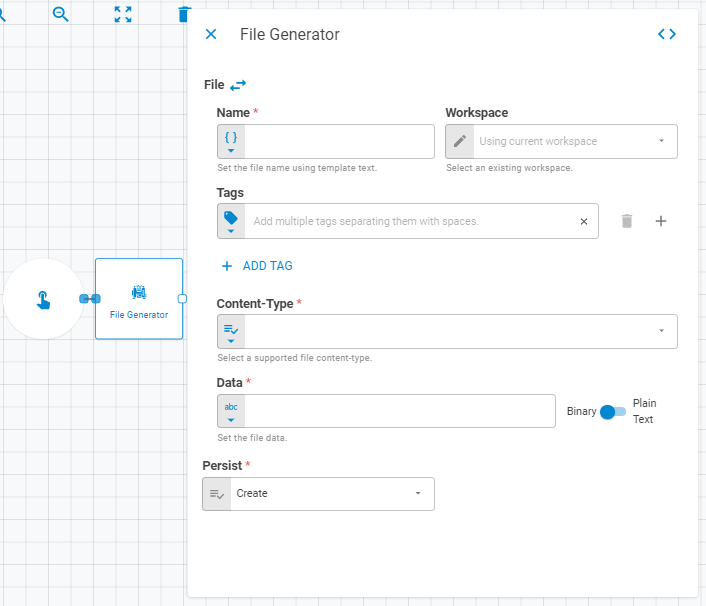
Parameters
The File Generator worker must receive specific parameters in order to execute properly. When parameters are not set correctly it may cause the worker to not work as expected.
File
The file field has two types of operations controlled by a swap icon (highlighted below in red):
Closed Swap
This is the default: It is used when the various parameters from the file (Name, Tags, Content-Type, Data) are being provided by the EveryskAPI, as a File object. It will be necessary to pass the whole file to a File Generator worker as Upstream Data in order to save it in the Everysk Platform. You can check the The Worker Structure article to learn more about how to use data from the API inside a workflow.


Open Swap
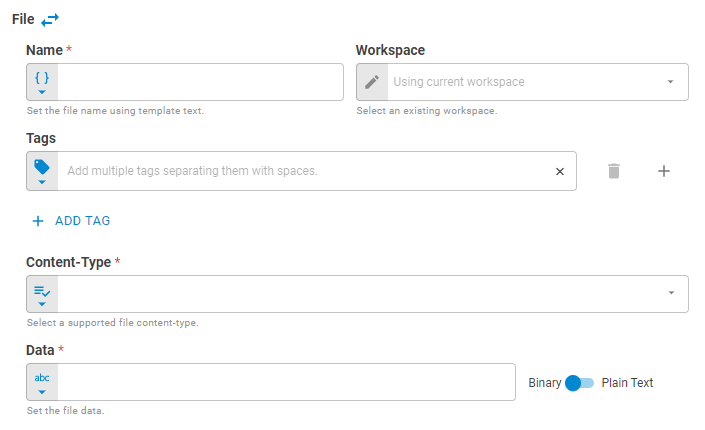
When you need to supply all the elements from a file, one by one, you will need to press the Swap icon to open more input fields. Fields for the file's name, tags, content-type, base currency and data will be exposed:
Name
Set the file name using Template Text or Upstream Data variants.
Workspace
Select the workspace using Fixed Workspace or Upstream Data variants.
Tags
Set the file tags using Fixed Tags or Upstream Data variants.
Content-Type
Set the file content-type using Fixed Selector Upstream Datavariants. The accepted content-types are: image/svg+xml, image/bmp, image/jpeg, image/png, image/gif, application/xml, application/javascript, application/json, application/csv, application/vnd.openxmlformats-officedocument.spreadsheetml.sheet, application/vnd.ms-excel, application/pdf, application/octet-stream, application/x-zip-compressed, application/zip, text/xml, text/plain, text/csv, text/comma-separated-values, text/x-comma-separated-values.
Data
Set the file data using Fixed Test or Upstream Datavariants. The data must be encoded in Base 64 format.
Persist
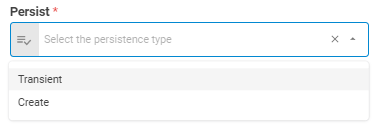
When generating the new file, you can choose whether this file will be saved in the platform or not through the Persist button. This button has two options: Transient and Create.
Transient
The generated file will not be saved in the platform, but will be accessible for the next workers in the workflow.
Create
The generated file will be saved in the platform and will be accessible for the next workers in the workflow.
Result
Once this worker finishes to execute successfully, it will return an object containing the generated file to the workflow, which can be used by downstream workers. Below you can see an example of the File Generator's result object hierarchy.
- File (file)
- ID (string)
- Name (string)
- Tags (list)
- Content-Type(string)
- Data (string)