Portfolio Optimizer
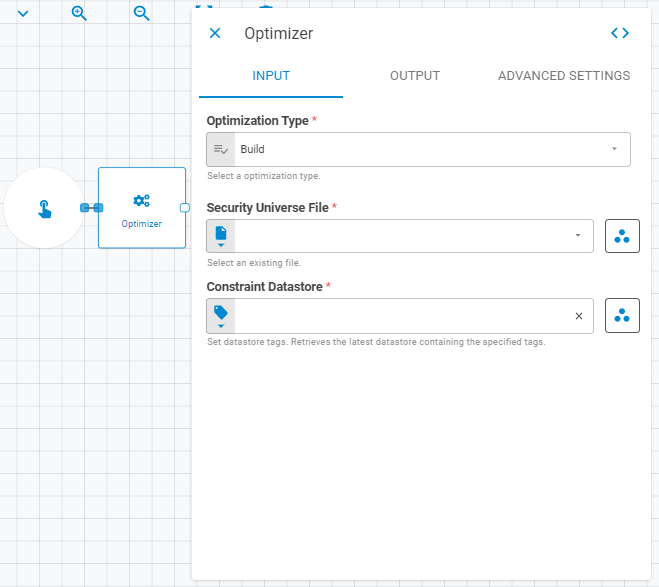
The Portfolio Optimizer worker receives a security universe file or an existing portfolio and optimize it based on user given constraints. The worker provides two ways of optimization: 1) Build a new portfolio from a file of securities. 2) Tweak an existing portfolio.
Parameters
The Portfolio Optimizer worker must receive specific parameters in order to execute properly. When parameters are not set correctly it may cause the worker to not work as expected. This worker's parameters are separated in the following tabs: Input, Output and Advanced Settings.
Input
The Input tab contains parameters which are consumed by the worker, in order to execute its calculations
or actions.
Optimization Type
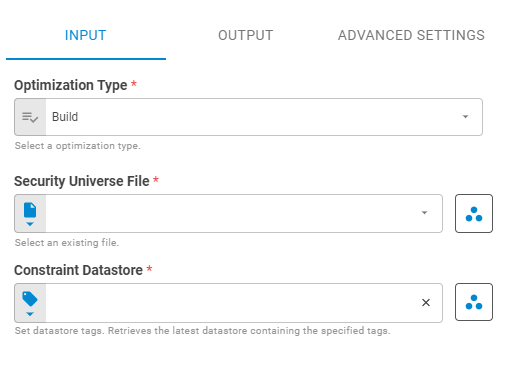
Select the optimization type using Fixed Value variant. Select Build to generate a whole new portfolio based on a universe of securities. Select Tweak to optimize an existing portfolio.
Build Optimization Type
The Build Optimization Type takes a Security Universe File and generates a new portfolio.
Security Universe File
Select an existing file using Fixed File, Get Latest or Upstream Data variants.
Constraint Datastore
Select an existing datastore using Fixed Datastore, Get Latest or Upstream Data variants.
Tweak Optimization Type
The Tweak Optimization Type takes a Security Universe File and generates a new portfolio.
Portfolio
Select an existing portfolio using Fixed Portfolio, Get Latest or Upstream Data variants.
Constraint Datastore
Select an existing datastore using Fixed Datastore, Get Latest or Upstream Data variants.
Output
The Output tab contains parameters that defines the worker execution results, and how it will be provided to downstream workers.
Name
Set the portfolio name using Template Text or Upstream Data variants. When tweaking an existing portfolio you might choose to use the same name as the source portfolio; to do so, just let the Name field blank. When building a new portfolio you must provide a name for the portfolio.
Date
Select the portfolio date using Fixed Date or Upstream Data variants.
Workspace
Set the workspace in which the generated portfolio will be saved on the platform using Fixed Workspace.
Net Liquidating Value (NLV)
Set the portfolio NLV using Numberor Upstream Datavariants. When building a portfolio you need to pass a Net Liquidating Value to the new portfolio. When tweaking an existing portfolio this is not necessary and the NLV field will be disabled.
Base Currency
Select the portfolio base currency using Select or Upstream Datavariants. When building a portfolio you need to pass a Base Currency to the new portfolio. When tweaking an existing portfolio this is not necessary and the Base Currency field will be disabled.
Tags
Set the portfolio tags using Fixed Tags or Upstream Data variants.
Storage Mode
Build Optimization
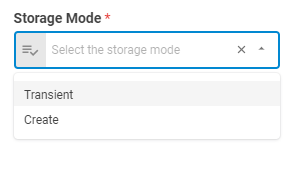
When generating the new portfolio, you can choose whether this portfolio will be saved in the platform or not through the Storage Mode button. This button has two options: Transient and Create.
Transient
The generated portfolio will not be saved in the platform, but will be accessible for the next workers in the workflow.
Create
The generated portfolio will be saved in the platform and will be accessible for the next workers in the workflow.
Tweak Optimization
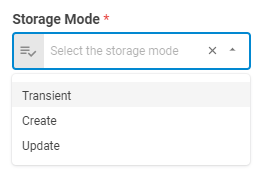
When tweaking the existing portfolio, you can choose to save a new tweaked portfolio in the platform, update the existing portfolio or make this portfolio temporary through the Storage Mode button. This button has three options: Transient, Create or Update.
Advanced Settings
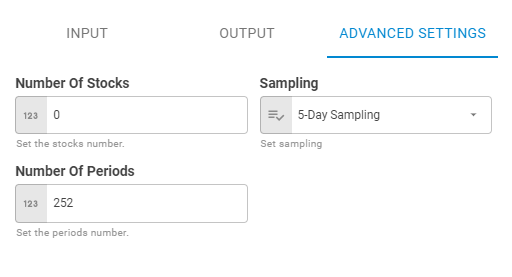
When building a portfolio from a security universe file you can set advanced settings for the portfolio. These settings are Number of Stocks, Samplingand Number of Periods.
Number of Stocks
Defines the limit of stocks you want to returned in the optimization. You can define this limit using Fixed Number variant.
Sampling
Set the sampling using Fixed Value variant. You can check the Sampling Combination section, on the Everysk API documentation to know more about combinations between Horizon and Sampling.
Number of Periods
Set the number of days to be used inside the optimization using Fixed Number variant.
Result
Once the worker finishes its executions successfully, it will return a result object containing the merged portfolio to the workflow, which can be used by downstream workers. Below you can see an example of the Portfolio Optimizer's result object hierarchy.
- Portfolio (portfolio)
- ID (string)
- Name (string)
- Tags (list of strings)
- Date (date)
- Base Currency (number)
- NLV (number)
- Securities (list)
- ID (string)
- Status (string)
- Instrument Class (string)
- Symbol (string)
- Label (string)
- Quantity (number)